Terminal and jobs
A real terminal (⌘J)
SwiftTerm provides a native pty running your login zsh -l, so oh-my-zsh, your prompt, and your aliases load exactly as in Terminal.app. Nothing is emulated or sandboxed away. Live shells are cached individually: toggling the panel keeps each session and its scrollback alive, and a typed exit gets you a fresh shell next time. You can keep several shells open in one workspace — see + Terminal under the Activity tray.
Scroll up to read back through history: the wheel scrolls the scrollback, and while you're reading it stays put — new output no longer yanks you to the bottom. Scroll back down to the bottom and the terminal follows fresh output again.
Drag across the output to select it, then ⌘C — or right-click for Copy / Select All. The shell keeps the mouse for selection rather than handing drags to the running program, so output stays copyable even under a full-screen TUI.
The panel docks at the bottom of the editor; drag the splitter above it to set its height. Tear it off by dragging its title bar away — or clicking the pop-out glyph — and the same live shell migrates into its own floating window; close that window to hand it back inline. The explorer and squad panels resize the same way, by dragging the splitter on their inner edge, and all three sizes stick across launches.
Squad: Send Terminal Output hands the buffer's tail to an agent as context and caches it to .kiln/terminal.log — local, never committed by Kiln.
Activity
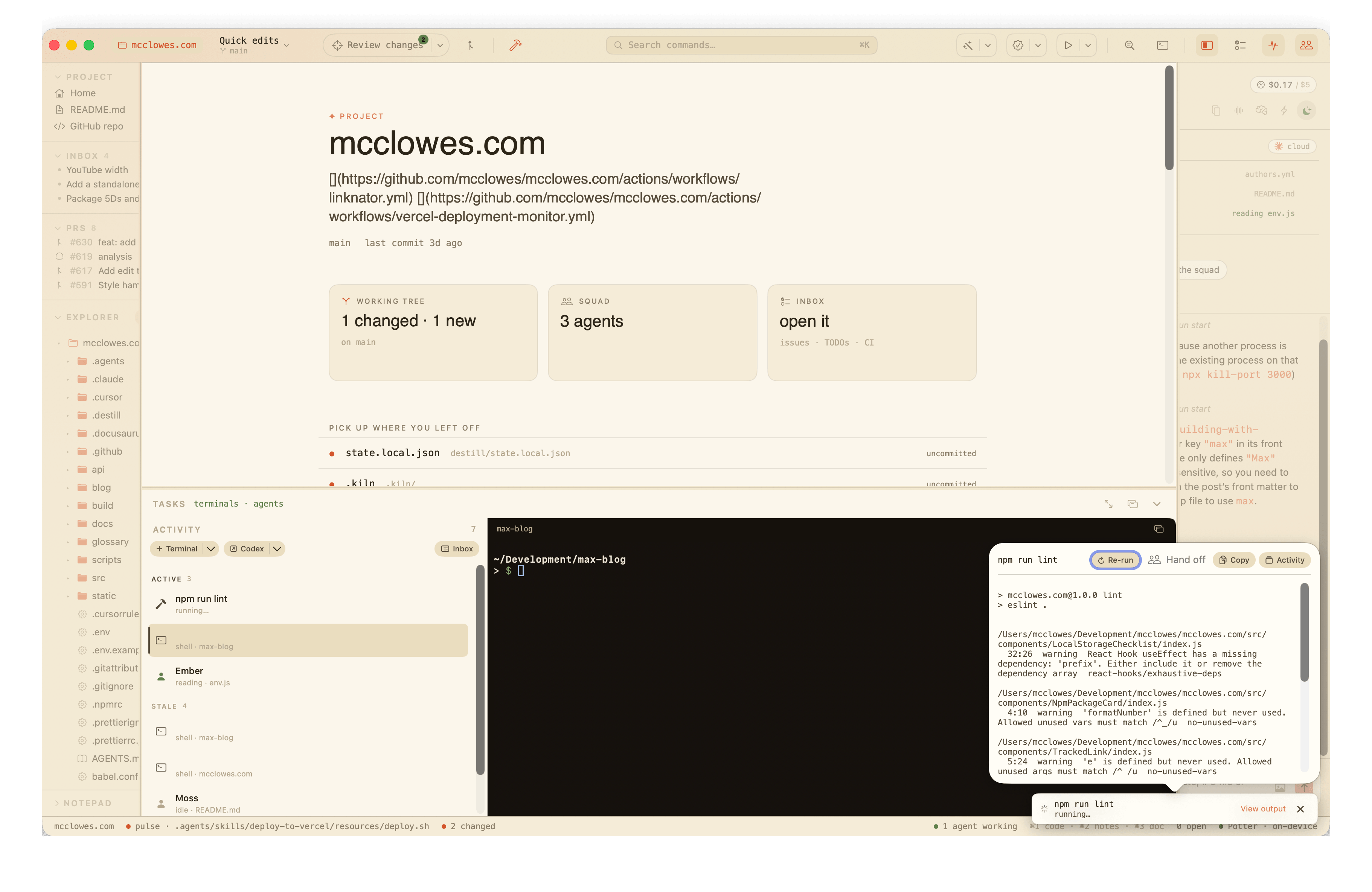
The bottom pane isn't just one terminal — it's the Activity tray, a list of everything running, with the selected task's terminal beside it. The left third is the activity list; the right two-thirds is the terminal for whichever task is selected. Click a task to bring its terminal forward.
A task is one of:
- a terminal — a live login shell you're driving. The shell is named from what it's doing — "Running tests", "npm dev server", "git rebase" — and refreshed as the output changes. With no smart naming available it falls back to the running command, then the directory name;
- a CLI model — a Claude Code session running in a terminal, shown by the model's name (Opus, Sonnet…) rather than "shell";
- an agent — an on-device squad member that's reading, thinking, or writing, or a streaming chat reply. Agent rows are backed by the workspace terminal so selecting one still shows a shell; richer per-agent surfaces are a later step.
A row of quick actions sits under the header:
- + Terminal opens another shell in the workspace — like a new Terminal.app window, and you can run as many as you like, each its own row. A trailing chevron drops a menu with New worktree….
- + Claude Code is a dropdown of the CLI model tiers (Fable, Opus, Sonnet, Haiku). Pick one to wake a Claude Code session pinned to that model. A nested In a new worktree submenu creates a fresh worktree first and runs the session there, so a cloud agent works in isolation rather than on your checkout.
- Worktrees lists the repo's existing worktrees — click any to open it in its own window — and offers New worktree… to create one.
- Inbox jumps to the full inbox surface.
Worktrees
A git worktree is a second checkout of the same repo in its own folder, sharing one .git. Kiln makes them first-class so you — or a cloud agent — can spin off isolated work without disturbing the main tree.
New worktree… (from the + Terminal dropdown, the Worktrees menu, or the Claude Code submenu) prompts for a branch name, then forks a new branch into a sibling folder named <project>-<branch-slug> and opens it. Reach it from the Claude Code menu and the new worktree comes up already running a Claude Code session on your chosen model — handy for letting an agent loose on a branch while you keep working on main.
The Worktrees menu reads the current list each time it opens, so existing worktrees — including the main tree — are always one click from opening.
The list reorders itself into three bands:
- Needs you floats to the top — a task waiting on you. For a terminal that means the session has printed a decision prompt (a
(y/n), Claude Code's numbered choice menu, "do you want to proceed", and the like). The same signal drives an amber count badge on the title-bar terminal toggle, so a shell waiting on you is visible at a glance even when this pane is closed. - Active sits in the middle, newest output first.
- Stale sinks to the bottom — no output for five minutes. Long enough that a slow build or a thinking agent isn't punished, short enough that an abandoned shell gets out of the way.
Remote-control a Claude Code session: hover a CLI-model row and click the broadcast glyph on its right to type /remote-control into that session — one click puts a running Claude instance into remote-control mode without selecting it first. Only CLI-model rows show the button, since only a live Claude Code session can take the command.
Close a terminal: hover a terminal or CLI-model row and click the × on its right. Kiln confirms first — closing ends the shell and any process it's running — then signals the shell to exit and drops its row. Agent rows have no close button: they only borrow the workspace shell, so there's nothing of theirs to tear down.
Restored on reopen
When Kiln closes, it remembers which terminals you had open — each shell's working directory — to .kiln/terminals.local.json (machine-local, never committed, like the notepad). Reopening the workspace re-spawns those shells in the same directories, so the terminals you were running come back instead of starting from an empty pane. The file is rewritten whenever the set of live shells changes, so a clean quit and a crash both leave a current snapshot. What's restored is the shells themselves, not their scrollback — a re-spawned shell starts fresh.
Jobs and plugins
Jobs piggyback on the project's own tooling instead of reimplementing it: Makefile targets, npm scripts, SwiftPM verbs, git hooks, and plugins (.kiln/plugins/*.json) are discovered by name and surface as palette commands (⌘K). Running one spins up a very lightweight hidden shell with output captured; recent runs sit as quiet chips above the status bar, one click from the full output, and running jobs can be stopped from there.
The principle: the project should say how to run itself — Kiln (and its agents) shouldn't guess.
Title-bar quick actions
The three jobs you reach for most — lint/format, run tests, build/run — also sit in the title bar as split buttons, so they're one click away without opening the palette. Each slot resolves to a command the project already defines, matched by name; a slot with no match is hidden, not greyed out.
Tapping the icon runs the slot's current command. The chevron drops a menu of every command the project defines — all the npm scripts, Makefile targets, and build verbs — with the slot's own matches up top and the rest under All commands. So the test button isn't stuck on whatever Kiln guessed: pick test:watch, storybook, or deploy from any button's menu and it runs. Once the list grows past a handful, the menu grows a filter field at the top — type to narrow it to the commands whose name or command line matches, so a long command list doesn't mean a long scroll.
The test button's menu also carries an Open test runner link at the top, jumping straight to the in-IDE test page (the per-test results table). You can also reach it from the command palette (⌘U).
Whatever you pick becomes the slot's command — Kiln remembers your last pick per workspace, so the next tap repeats it rather than reverting to the default. A single-command project keeps a plain icon button with no chevron, so the chrome stays quiet (the test button keeps its chevron regardless, to carry the test-page link).
A plugin command can carry one {input} token for a value supplied at run time — {"name": "Search docs for…", "command": "grep -rn '{input}' docs/"}. Running it prompts for the value, shell-escapes it into a single-quoted literal (so shell metacharacters stay inert), and runs the substituted command; cancelling the prompt cancels the run. The JSON still reads easily, so what runs stays legible. Plugins generated by the squad can't use {input} — runtime arguments are a hand-authored feature, kept out of commands that run without review.
Plugins: custom palette commands
A plugin is a single-command palette action you can write by hand or have the squad grow for you. It lives as a JSON file in .kiln/plugins/, one file per plugin, capped at 40 plugins per workspace.
Plugin JSON schema:
{
  "name": "Count the TODOs",
  "command": "grep -rc 'TODO:' Sources | wc -l"
}
The name appears in the palette; the command runs as a shell line from your project root, same as a Makefile target. Plugins surface as jobs, so you get output capture, per-run chips above the status bar, and integration with the squad's verify pass — just like any other project tool.
Safety: Plugins you write are trusted by default. Plugins grown by the squad (via "Grow a command" in the palette) are gated by a safety check that refuses anything destructive: no rm -rf, sudo, git push, git reset --hard, etc. The checker runs once when the plugin is created; after that, you own it.
Event-triggered plugins
A plugin can opt into running on an IDE event instead of a palette pick, with an optional on field:
{ "name": "Regenerate snippets", "command": "make snippets", "on": "save" }
Two events, grown only on demand:
save— fires after a buffer writes to diskjob-fail— fires when a job finishes non-zero
A triggered run goes through the same jobs layer as everything else, so output capture, the run strip, diagnostics, and stop-from-chip come free — there's no separate execution path. Three guardrails keep it boring: triggered runs never trigger further events (a job-fail plugin that itself fails can't cascade), save runs debounce per plugin to the trailing edge (holding ⌘S doesn't queue a pile of shells), and triggers are gated on workspace trust like every other plugin. Plugins without on are untouched; an unknown on value loads the plugin palette-only, so a newer plugin file stays usable. AI-grown plugins (growSystem) don't emit on yet — the safety story there is a follow-up.
Driving the IDE from plugins: the control port
While a plugin is running in the terminal, it can write commands to the .kiln/control FIFO and the IDE will obey. This pairs a plugin's output with IDE navigation: grep finds a file, the plugin names it, and the IDE opens it.
How it works:
The IDE creates a named pipe at .kiln/control and listens on it (mode 0600, your workspace only). Any process — a plugin, a script, you in the terminal — can write one command per line:
echo "open src/app/main.ts" > .kiln/control
echo "view notes" > .kiln/control
echo "squad run" > .kiln/control
Commands:
open <path>— open a file in the editor. Path is relative to the project root.view <mode>— switch the editor's narration dial:code,notes, ordoc.show <surface>— open a project surface:todos,config,notepad,overview,squad,terminal,chat,changes,diff,tests,prs,plans, orsearch.squad run— start an on-device squad run on the current file.squad pair— start a pairing session (architect picking runs for a worker).save— save the current file to disk.job <name>— run a job the project already knows: a Makefile target, npm script,build/testfor a SwiftPM project, a git hook, or a palette plugin, matched by name. The run raises its toast like a palette pick; an agent driving the IDE reads the outcome back from the state mirror (Kiln_read_job), since the FIFO is one-way.plan add <text>— append a step to the current plan's checklist.plan step <stepID> <status>— walk a step along its ladder:todo,working,proposed, ordone.plan current <plan-id>— switch which plan is current.
All commands are case-insensitive and parsed leniently (bad commands are silently ignored). If a file path doesn't exist, open does nothing.
Example: a plugin + control port combo
A plugin that finds the first FIXME in your Sources and jumps to it:
{
  "name": "Open first FIXME",
  "command": "grep -rln 'FIXME' Sources | head -1 | xargs -I{} echo 'open {}' > .kiln/control"
}
Run it from the palette (⌘K → "Open first FIXME"), and the IDE opens the file that contains the first FIXME it finds. The plugin runs in the terminal as a job, you see its output above the status bar, and the open command fires instantly — no polling, no callback, just one command per line down the pipe.
Other ideas:
- A plugin that runs tests and sends passing/failing test names to the squad for triage.
- A plugin that finds all unresolved merge conflicts and opens the first one.
- A plugin that triggers a build in the terminal, and on success, opens the built binary for inspection.
- A formatter plugin that runs
swift-formatand then callssquad runto have the squad review the changes.
App Intents: Shortcuts and Spotlight
Kiln ships a small set of App Intents, so the OS can drive it from the Shortcuts app, Spotlight, and Siri without any setup:
- Open Project — pick a folder and Kiln opens it as a workspace.
- Open File — pick a file and Kiln opens it, rooting the workspace at the file's nearest
.gitancestor (falling back to its own directory).
Both go through the same launch path the KILN_WORKSPACE / KILN_OPEN environment variables drive, spawning a fresh, project-scoped instance — the same isolation as opening a different project in-app. They work whether or not Kiln is already running.
What a finished job feeds
- Inline diagnostics: output is parsed for compiler/linter findings, which land next to the offending lines in the editor.
- Test summaries: output that reads as a test run (Swift Testing, jest/vitest) gets a pass/fail count on its chip, failed names on hover.
- Send to squad: a failed run's popover offers one click to hand the failing output to an agent — if it names a file, the agent reviews that file with the failure as its task.
- CI too: the todo view shows the repo's failing CI runs via
gh; "send an agent" fetches the failing log and takes the same path.
Verification pass
A pending squad proposal can be verified before you accept it: the change is staged onto disk, the project's cheapest truthful check runs (lint before build), and the disk is restored byte-for-byte. The proposal then carries a badge saying which command passed — or exactly what broke. Review is only trustworthy when the IDE says what it checked, not just what changed.
Before anything is staged, a syntax gate parses the patched buffer with tree-sitter where a grammar is registered (Swift, JSON): a proposal that introduces new parse errors — mangled braces, a half-applied edit — fails in milliseconds instead of costing a build. Files that were already broken on disk aren't blamed for it, and languages without a grammar skip the gate.