The editor
The narration dial
Every buffer has three faces, switched from the dial in the tab bar or ⌘1/⌘2/⌘3 — or cycled with ⌘E (CODE → NOTES → DOC → CODE). The dial controls how loudly the editor talks about the code:
- CODE (⌘1) is a pure editor: a TextKit-backed
NSTextViewwith a line-number gutter and config-driven highlighting. Zoom the font with ⌘+/⌘- (clamped 9–24pt) and ⌘0 to reset; the size is the same one the Settings stepper (⌘,) sets, so it sticks across launches. A project.kilneditorFontSizestill wins where set. - NOTES (⌘2) splits the file into sections (blank-line separated, a comment-only block riding with the code it introduces) and lifts each section's leading comments into a quiet serif margin gloss. The code stays editable; sections are verbatim file slices, so edits splice back into the file unchanged.
- DOC (⌘3) drops the gutter, grows section titles into headings, and reads like a document. A section's title comes from its leading comment (the gloss); a section with no comment carries no heading rather than one that just restates the first line of the code below it. Each section gets an intent affordance: say what should be true of that section, and the change weaves in as an in-place diff you approve with one keystroke (the "weave").
A file that opens with a header doc-comment — the shebang-and-/** … */ "code frontmatter" a lot of source files carry — renders that block as a markdown frontispiece in DOC instead of as raw comment source. The standfirst reads as document prose, a hand-aligned block (the channel tables people draw in headers) is kept in monospace so its alignment survives, and the comment scaffolding (/**, leading *, the shebang) is dropped. Only a clean header qualifies — a comment block with nothing but blanks after it; anything with trailing code falls through to the normal code rendering, and NOTES keeps the header editable.
Markdown and MDX files treat DOC differently: the doc view is the rendered document itself — GFM blocks, frontmatter stripped, JSX components re-emitted as fenced code — with prev/next reading through sibling docs ordered by sidebar_position frontmatter, Docusaurus-style. Parsing goes through swift-markdown, so pipe tables, nested lists, task-list checkboxes, and reference links render the way the docs site itself would render them.
Sections without a telling comment can get on-device titles and glosses, cached by the section's code so retyping a line re-narrates only that section. Only when Apple Intelligence is available. Narration also lands in a cache so flipping the dial away and back shows the existing notes at once instead of re-narrating — only sections whose code actually changed regenerate.
Each code section folds to its title: a section with enough code to be worth hiding carries a disclosure chip beside its heading, and collapsing it leaves only the title, gloss, and a line count. Trivially short sections and import runs (which already have their own fold) skip the control.
Find and replace
CODE view carries the native find bar. ⌘F opens it; ⌘⌥F opens it with a replace row. The bar cycles matches with ⌘G / ⌘⇧G (or its own arrows), shows the live count, and exposes case-sensitive, whole-word, and regex toggles from its loupe menu — match cycling lands on the hit, scrolls it into view, and selects it. Find and Replace All run against the buffer only; saving is still the deliberate ⌘S, so a replace-all is never written behind your back. The find bar only appears on demand, so it never steals room from the gutter.
The same matching rules power project-wide content search off the main thread. Project-wide find — a grep-style results list you click into — is the next slice.
Marginalia
The NOTES and DOC margins carry more than the gloss — they're where the file's context lives:
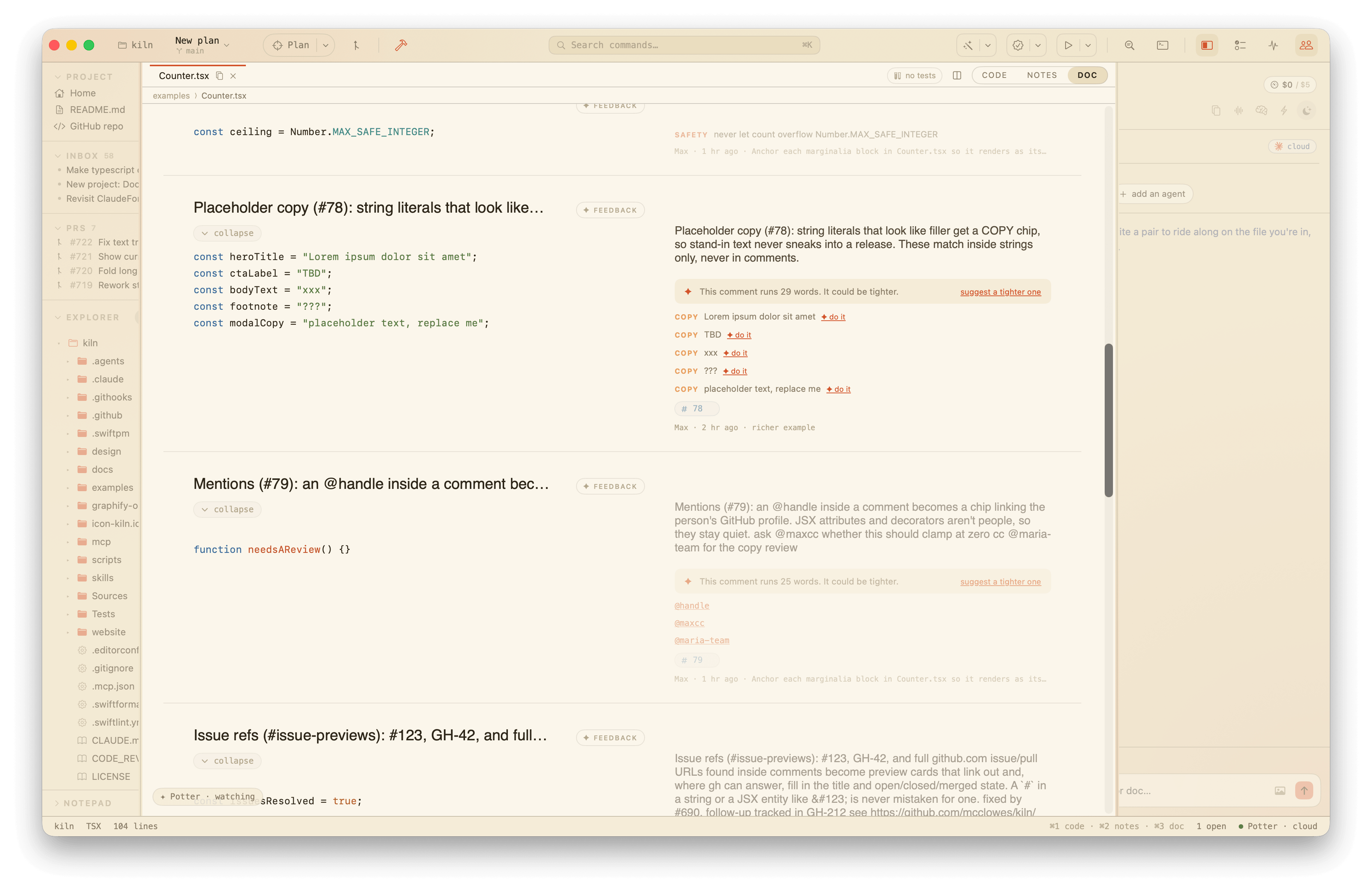
- Comment tags:
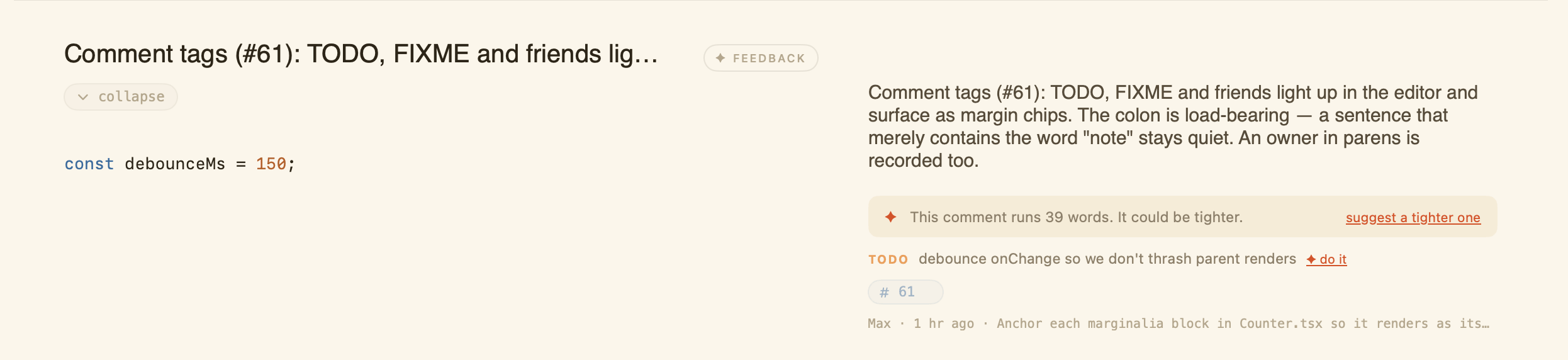
TODO:,FIXME:,HACK:,NOTE:,WARNING:,PERF:,SAFETY:,PLACEHOLDER:, andCOPY:get their own color in every view and a labeled chip in the margin. Tags are found via the highlighter's comment ranges, so aTODO:inside a string never matches. Owner parentheticals (FIXME(max):) work; the colon is required, so prose mentioning "note" stays quiet. The chore tags —TODO,FIXME,HACK,PLACEHOLDER,COPY— carry a one-click ✦ do it that hands the tag to the squad as a task scoped to this file, so the worker reads the file and proposes the fix. The informational tags (NOTE,WARNING,PERF,SAFETY) stay quiet — they're context, not a chore.
-
Placeholder copy: string literals that look like stand-ins (lorem ipsum,
tbd,xxx,???) surface as COPY chips so they can't ride to production.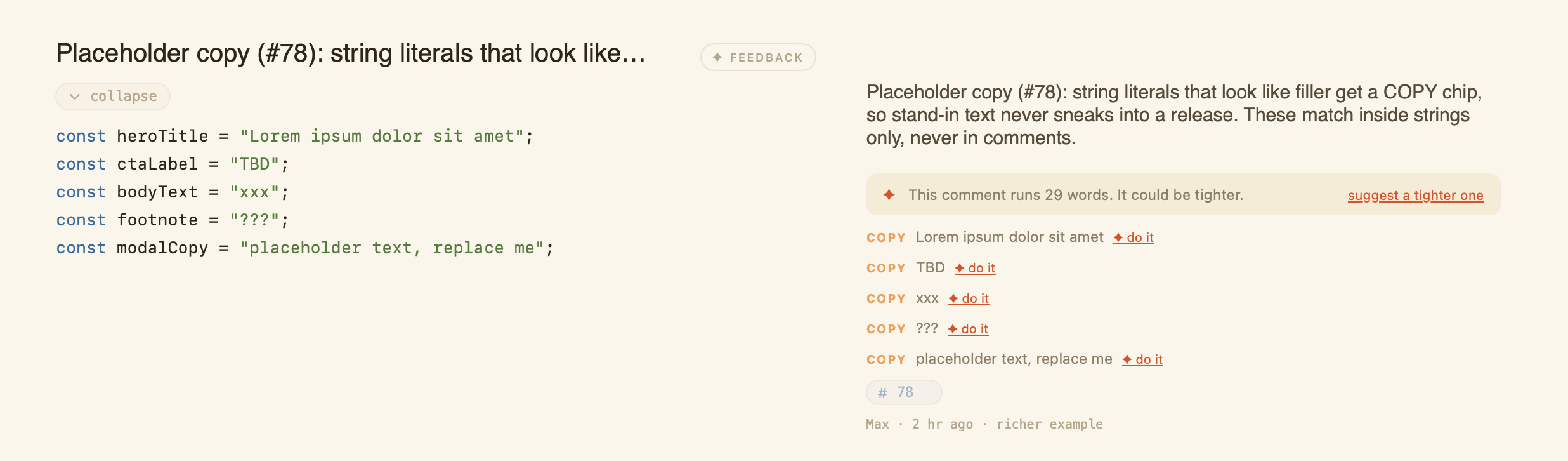
-
Inline diagnostics: when a job finishes, its output is parsed for compiler/linter findings (swiftc/clang/SwiftLint, tsc, and eslint shapes). CODE view tints the offending line and prints the message at the end of it; NOTES/DOC show the finding beside its section. The latest job speaks for the project — a green run clears the slate.
-
Blame: each section gets a quiet chip naming who last shaped it — first name, relative time, commit summary — from one
git blame --line-porcelaincall per file, on demand. The result is cached, so revisiting NOTES/DOC reuses it; a save refreshes it. -
Stories and previews: SwiftUI
#Previewblocks in the buffer and sibling*.stories.*files show as chips beside their section; clicking a story chip opens the story file. -
Applied notes: a summarizer gloss you like can be kept as a comment — it lands as a
// ~ noteline above the section. The~marks it: applied notes render with a ✦ and are never re-narrated.
Pseudocode first
Write the structure as comments, then run Weave: Draft From Pseudocode from the palette. A squad member grows the implementation under your outline, keeping each outline comment as the section comment for the code that fulfils it. The draft arrives as a normal squad proposal — buffer-only, diffed, yours to keep or discard. Buffers that already read as code are politely declined.
Highlighting
All highlighting goes through tree-sitter where a grammar is registered (Swift and JSON today); a fast config-driven tokenizer covers the rest (TS/JS, Python, Rust, Go, CSS, shell, C-family). One linear pass, UTF-16 safe, debounced on edit. Every view mode uses the same highlighting, so a new grammar lights up everywhere at once. Adding a grammar is three steps, written up in the README.
Swift highlighting is a real parse, so comment and string ranges are exact — an interpolated expression inside a string literal highlights as code, and a // inside a string is never a comment. The parse tree also powers the declaration outline agents see in their prompts: for tree-sitter languages it's query-driven and reports nesting (a method indents under its type), while other languages keep the line-shape heuristic.
Multi-cursor
In CODE, select a multi-line region and press ⌘⇧L to drop a caret at the end of every line the selection touches. Type and every line gets the same edit; delete and every caret deletes in step. Escape collapses back to a single caret. A single-line or empty selection lands one caret at that line's end.
Two more ways to fan out carets: ⌘D selects the word under the caret, then on each press adds the next occurrence of the current selection — wrapping past the end of the file — so you can rename every hit by typing once (Sublime's signature gesture). ⌥⌘↑ / ⌥⌘↓ drop an extra caret on the line above or below at the same column, clamped to a shorter line.
Brackets and indentation
CODE auto-pairs the way Sublime does. Type an opening bracket or quote and its partner lands after the caret; type the closer that's already there and the caret just steps over it instead of doubling up; select text and type a bracket or quote to wrap the selection; backspace over an empty pair and both halves go at once. Pairing holds back where it would be a nuisance — an opener glued to the front of a word, or an apostrophe inside don't — so it stays out of the way. The bracket beside the caret and its matching partner tint together, so a block's extent reads at a glance.
Return carries the current line's indentation down to the new line, adds a level just after an opener, and — with the caret wedged between a matching pair like {|} — opens a blank indented line with the closer pushed onto its own row. The unit follows the line you're on: a tab-indented line indents with a tab, everything else with four spaces. Both default on and fall through untouched while a multi-cursor selection is live.
Line and text operations
The whole-line edits AppKit doesn't ship, on the keys Sublime and VS Code use: ⌥↑ / ⌥↓ move the line(s), ⇧⌥↑ / ⇧⌥↓ copy them up or down, ⌃⇧K deletes the line, and ⌃⇧J joins the selected lines (or the current line with the next) into one, collapsing each break to a single space. The Selection menu also sorts the selected lines — or the whole buffer when nothing's selected — and converts the selection (or the word under the caret) to UPPER, lower, or Title case.
Section breathing
Blank lines between sections stretch so the file reads in paragraphs. Toggle it from the View menu; projects can pin it in .kiln config.
Opening projects
Each project gets its own window. State is per-process, so a window is a separate app instance: opening a second, different folder spawns a fresh instance scoped to it and leaves the first window untouched. Reopening the folder already showing in this window just stays put, and the first folder you open on a fresh launch fills the current window rather than spawning. Whether a file happens to be open in a window has no say in where the next folder lands.
Telling tabs apart
A tab shows just the filename — until two open files share one. Then each colliding tab grows the shortest run of parent folders needed to tell it apart (routes/index.js and models/index.js become index.js routes and index.js models), the way VS Code does. The suffix appears only when there's an actual collision, so the strip stays quiet the rest of the time. Hover any tab and its full project-relative path shows in a tooltip, collision or not. Above the editor body, a breadcrumb strip spells out the active file's whole path in folder chevrons, so "which index.js is this?" is answered without hovering anything.
Tearing a tab off
Drag a file's tab away — or click its pop-out glyph — and the file tears off into its own floating window, the way the terminal does. The tab leaves the inline strip while it's out, and the floating window edits the same buffer live: there's one source of truth, so a save in either place lands on disk and the dirty dot stays in sync. Closing the window — or clicking its dock-back glyph — slots the file back into the tab strip. Closing the underlying tab in the main window closes the floating window too. Only saved files can tear off, since a window is addressed by its URL; untitled buffers stay put.
Split editor
Put two files side by side the way every IDE does. Split the editor from the icon in the tab bar, View ▸ Split Editor, or ⌘\ — the focused file opens in a fresh second pane and keeps editing alongside the first. Each pane scrolls and carries its own caret; the tab strip stays shared, so clicking a tab or opening a file lands in whichever pane has focus (the one ringed amber at its top edge). Click into a pane to focus it, or flip with ⌥⌘.
Drag the divider between the panes to give one more room — neither can be squeezed below a usable width. Panes sit side by side by default; ⌥-click the split icon (or the View menu) stacks them top and bottom instead. ⌘\ again — or the icon while split — collapses back to one pane; the second pane's file stays open in the tab strip. The two panes can show the same file or different ones, and when they share a file they edit the one buffer, so an edit in either shows in both at once.
Session restore
Launch lands back where you left off. Each window heartbeats its session — workspace, open tabs, active tab, and which of the terminal, squad, and assistant panels were showing — into a shared store every couple of seconds; on the next launch, the windows still alive at quit come back: the newest in the first window, the rest in their own windows (app-bundle runs only). The terminal's shell is cached per workspace, so a restored terminal panel picks up the live session. A window closed mid-session stays closed, files deleted since last run are skipped, and untitled buffers aren't restorable. KILN_WORKSPACE, KILN_OPEN, and snapshot runs override the restore; KILN_PANELS names exactly the panels to show.
On a first-ever launch — nothing to restore — the squad & assistant panel is open; one toggle (⌘L) shows or hides it, and the choice sticks from then on.
Closing or quitting with unsaved edits
Quitting with dirty buffers prompts before anything is lost: save all and quit, quit without saving, or cancel. Saving an untitled buffer runs through the usual save panel; canceling that panel cancels the quit too.
⌘W on a dirty tab gets the same treatment: save writes the file and closes the tab, don't save closes without writing, cancel keeps the tab open. A clean tab closes silently, and canceling an untitled buffer's save panel keeps its tab open too.
⌘W on the last open tab doesn't vanish the window — it steps back to project home (the overview) instead. ⌘W again, now with no file in focus, closes the window. So the gesture reads "close this, then close the window," never "close this and lose everything in one keystroke."
Closed a tab you wanted back? ⇧⌘T reopens the file you closed most recently and keeps a stack of the rest, the way every browser does. Only saved files land on the stack — an untitled scratch buffer has no path to reopen from — and the menu item greys out when there's nothing to bring back.
Disk conflicts
When the file changes on disk under your edits — an agent wrote it, a checkout moved it, another editor saved it — auto-save pauses rather than clobbering either side, and an amber banner asks you to pick. The banner does more than ask: show diff expands a buffer-vs-disk diff right there, the disk content as the base with your unsaved edits laid on top, so you can see exactly what keep mine would overwrite or what take disk would discard before you choose. The diff is computed in-memory, never through git, so it works on uncommitted files and even untitled buffers, and it reuses the same file card the project Diff surface renders. Switching tabs collapses it again.
Capture shield
Files that look like they hold secrets — .env and its variants, *.pem/*.key and other key material, SSH private keys, *credentials*, .netrc, .npmrc, and friends — are shielded from screen capture. While such a buffer is the visible view, the window's visibility drops, which removes the whole window from screen sharing, recording, and screenshots at the window-server level. A small amber "hidden from capture" chip in the tab bar says it's engaged; switching tabs or to a project surface lifts it immediately.
The trade is bluntness for dependability: macOS has no reliable public "someone is capturing my screen" signal, so Kiln doesn't try to detect sharing — the exclusion is unconditional while the sensitive file is on screen. Viewers of a share see the desktop behind Kiln rather than a redacted buffer; locally everything looks normal. Placeholder files (.env.example, .env.sample, .env.template) and public key halves (*.pub) are left visible.
Tab autocomplete
After a typing pause, the on-device model offers ghost text. Tab accepts, esc declines. Raw model output runs through a sanitizer that keeps at most two code lines and rejects anything unusable — small models wrap answers in fences or echo prose. Nothing leaves the Mac.